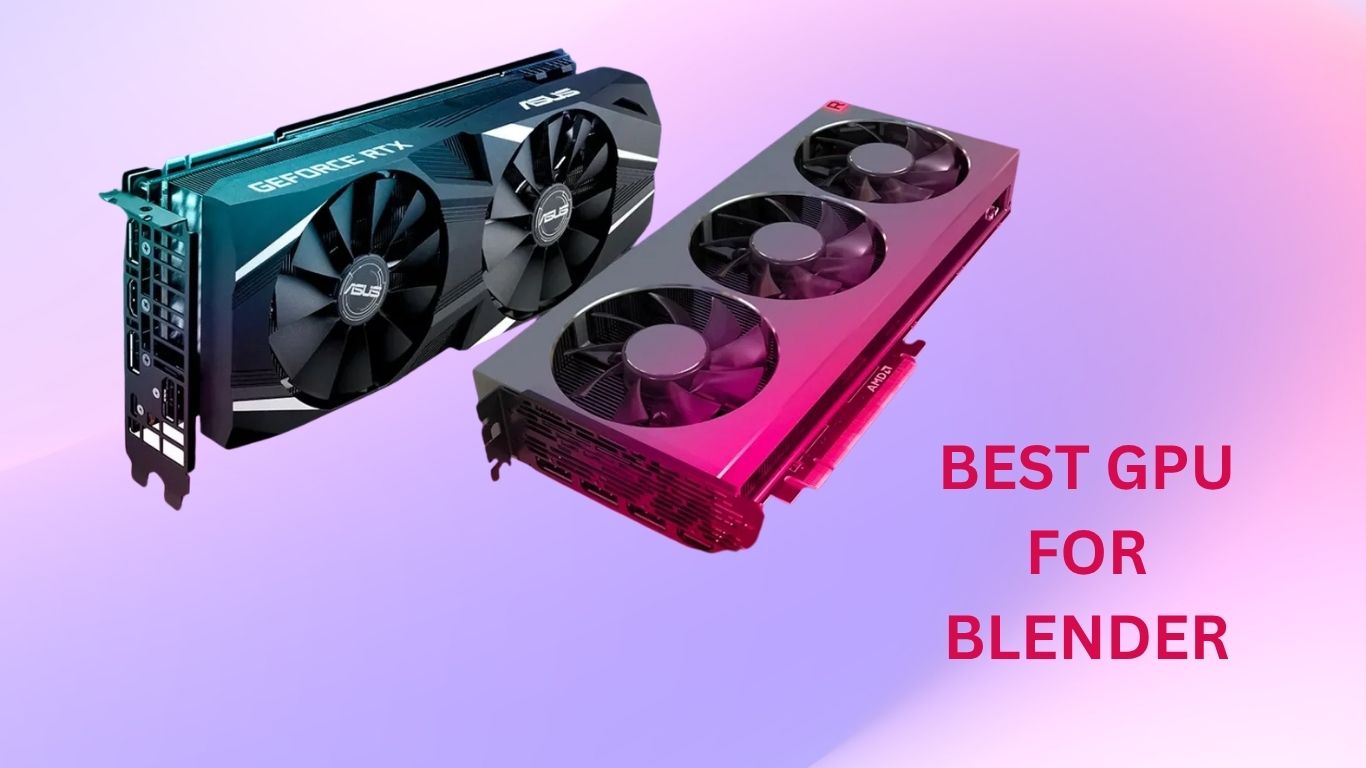
Choosing The Best GPU for Blender: Top Picks for Every Budget
If you’ve ever stared at a Blender progress bar for two hours waiting for a single frame to render, you already know the pain. Choosing the best GPU for Blender is one of the most impactful decisions you’ll make as a 3D artist, surpassing your CPU, RAM, and software settings.
Blender’s Cycles render engine is GPU-accelerated by default, which means the right graphics card can cut your render times from hours to minutes. Whether you’re creating product visualisations, animated short films, architectural walkthroughs, or game-ready assets, a powerful GPU directly translates into faster iterations, smoother viewport performance, and fewer all-nighters.
In this guide, we’ve tested and researched the top GPUs available in 2026, analysed benchmarks, and broken down the pros and cons of each option across every budget tier. Whether you’re a student just starting or a seasoned studio pro, this article will help you find the best GPU for Blender that matches your workload and your wallet.
What Is Blender (And Why Does It Push GPUs So Hard)?
Blender is a free, open-source 3D creation suite used for modelling, rigging, animation, simulation, rendering, compositing, and motion tracking. It powers everything from indie game studios to Hollywood-level VFX pipelines.
What makes Blender so demanding on GPUs is its two primary render engines:
- Cycles — A physically-based, path-traced renderer that produces photorealistic results. It’s GPU-accelerated using CUDA (NVIDIA), OptiX (NVIDIA RTX), HIP (AMD), and Metal (Apple). Every ray of light must be calculated, which is massively parallel work exactly what GPUs excel at.
- Eevee / Eevee Next — A real-time render engine that uses rasterisation for fast, interactive previews. It’s less physically accurate but ideal for stylised work or quick turnarounds.
The heavier your scene, the more polygons, the higher-resolution textures, the complex lighting setups, and volumetrics, the more your GPU strains. This is why VRAM and core count are everything in the world of Blender rendering.
Why Choosing the Right GPU Matters for Blender
The wrong GPU doesn’t just slow you down. It can actively break your workflow:
- Too little VRAM means Blender falls back to CPU rendering, which can be 10–50× slower.
- Slow ray tracing cores mean Cycles renders take forever, making iteration painful.
- Poor driver support can cause random crashes or rendering artefacts mid-project.
- Low core counts bottleneck complex scenes with millions of polygons and light bounces.
The right GPU, on the other hand, gives you:
- Real-time viewport feedback so you can see your scene as you build it.
- Render times fast enough to preview animations frame-by-frame.
- Enough VRAM headroom to work with 8K textures and dense geometry.
- Stable, long-session performance without thermal throttling.
Key Features to Consider Before Buying a GPU for Blender
Before diving into the product list, understand what specs actually matter for Blender:
1. VRAM (Video RAM)
This is the single most important spec for Blender. If your scene exceeds your GPU’s VRAM, Blender will either crash or fall back to the CPU.
- 8 GB — Minimum for basic scenes; not recommended for complex work in 2026
- 12–16 GB — Sweet spot for most freelancers and mid-level projects
- 24 GB+ — Necessary for large-scale environments, 8K textures, and simulations
2. CUDA Cores / Stream Processors
More cores = more parallel ray calculations = faster renders. NVIDIA’s CUDA cores are best supported by Blender’s OptiX backend, which is currently the fastest render path available.
3. RT (Ray Tracing) Cores
Dedicated hardware for ray tracing acceleration. These dramatically speed up Cycles rendering on NVIDIA RTX cards compared to older GTX-series or AMD cards.
4. Memory Bandwidth
Higher bandwidth means faster data transfer between VRAM and GPU cores. This matters when rendering complex scenes with large texture sets.
5. Blender Compatibility
NVIDIA RTX cards with OptiX support deliver the fastest render times in Blender. AMD cards work well via HIP but generally trail behind NVIDIA in Cycles performance. Apple Silicon uses Metal and performs excellently in its tier.
6. Power Consumption & Cooling
Top-tier GPUs like the RTX 5090 draw 575W. Make sure your PSU and case cooling can handle it.
Top 8 Best GPU for Blender in 2026
1. NVIDIA GeForce RTX 5090 — Best Overall Performance
Key Specs:
- CUDA Cores: 21,760
- VRAM: 32 GB GDDR7
- Memory Bus: 512-bit
- TDP: 575W
- Architecture: Blackwell (GB202)

Key Features:
- 32 GB GDDR7 VRAM — handles the most complex Blender scenes with ease.
- 21,760 CUDA cores — ~33% more than the RTX 4090.
- New 5th-gen RT cores for dramatically faster path tracing in Cycles.
- DLSS 4 and AI-based denoising that works within Blender’s compositor.
- ~36–40% faster than RTX 4090 in Blender benchmarks.
Pros:
- The absolute fastest GPU for Blender available to consumers.
- 32 GB VRAM leaves room for even the most ambitious scenes.
- Future-proof for Blender’s next-gen features and OptiX updates.
- Excellent for multi-app workflows (3D + video + AI simultaneously)
Cons:
- 575W TDP requires a high-end PSU (1000W+ recommended)
- Stock availability can be limited.
- Overkill for hobbyists or small-project freelancers.
Best For:
Studios, professionals working on feature-length animations, large architectural visualisations, and anyone doing 8K+ texture work.
Honest Review:
The RTX 5090 is genuinely transformative for Blender power users. Benchmarks show it scoring roughly 36–40% higher than the RTX 4090 in Blender’s OptiX path. The 32 GB GDDR7 VRAM is a real game-changer — you can finally work with truly massive scenes without hitting memory limits. That said, most freelancers won’t saturate it, and the premium price is hard to justify unless Blender rendering is your full-time livelihood.
2. NVIDIA GeForce RTX 4090 — Best for Professionals
Key Specs:
- CUDA Cores: 16,384
- VRAM: 24 GB GDDR6X
- Memory Bandwidth: 1,008 GB/s
- TDP: 450W
- Architecture: Ada Lovelace (AD102)

Key Features:
- 24 GB GDDR6X VRAM — handles virtually all professional Blender scenes.
- 16,384 CUDA cores with 4th-gen RT cores.
- Completed Blender’s bmw27 benchmark in ~6.44 seconds.
- Scores 3DMark 18,940 in Time Spy Extreme.
- Outperforms the RTX 4080 Super by up to 42% in Blender tasks.
Pros:
- Battle-tested and stable with mature OptiX drivers.
- 24 GB VRAM covers nearly every professional use case.
- Significantly faster than any mid-range card in Cycles rendering.
- Strong resale value.
Cons:
- Expensive, though now cheaper than at launch.
- 450W TDP requires a solid PSU.
- The RTX 5090 is noticeably faster if the budget allows.
Best For:
Professional 3D artists, VFX studios, architectural visualisation firms, and anyone whose time is literally money.
Honest Review:
The RTX 4090 remains one of the best GPUs for Blender even in 2026. Its Ada Lovelace architecture and mature OptiX driver support mean rock-solid stability. The 24 GB VRAM is generous enough for most studio-level work. If the RTX 5090’s price feels painful, the 4090 is still the most sensible professional purchase — proven, powerful, and increasingly available at better prices on the secondary market.
3. NVIDIA GeForce RTX 4080 Super — Best High-End Value
Key Specs:
- CUDA Cores: 10,240
- VRAM: 16 GB GDDR6X
- Memory Bandwidth: 736 GB/s
- TDP: ~320W
- Architecture: Ada Lovelace (AD103)

Key Features:
- Significant performance jump over the standard RTX 4080.
- Full OptiX ray tracing support for Blender Cycles.
- Strong Eevee Next viewport performance.
- 16 GB GDDR6X VRAM handles most professional projects..
- Efficient power-to-performance ratio
Pros:
- Excellent price-to-performance ratio compared to the RTX 4090.
- 16 GB VRAM is sufficient for the vast majority of Blender workflows.
- Lower TDP means less thermal management complexity.
- Great for freelancers running 24/7 render workloads.
Cons:
- 16 GB VRAM can feel limiting on heavy texture work or complex volumes.
- A notable step behind the RTX 4090 for truly demanding scenes.
Best For:
Serious freelancers, boutique studios, and professionals who want near-flagship performance without flagship pricing.
Honest Review:
The RTX 4080 Super is a refined, excellent card that delivers real professional-grade performance. It won’t embarrass itself next to the 4090 in most workflows, and the ~$500–700 savings are genuinely meaningful. If your scenes regularly push past 16 GB VRAM, step up. If they don’t, and most won’t, this is a smart buy.
4. NVIDIA GeForce RTX 4070 Ti Super — Best Value for Freelancers
Key Specs:
- CUDA Cores: 8,448
- VRAM: 16 GB GDDR6X
- Memory Bandwidth: 672 GB/s
- TDP: 285W
- Architecture: Ada Lovelace (AD103)

Key Features:
- 16 GB GDDR6X VRAM — same as the 4080 Super but at a lower price.
- Excellent performance in Blender Cycles and Eevee.
- Full 4th-gen RT cores and OptiX support.
- Low TDP makes it ideal for smaller workstations.
Pros:
- Best bang-for-buck GPU at this tier for Blender.
- 16 GB VRAM matches cards costing hundreds more.
- Quiet and cool under sustained rendering loads.
- Widely available.
Cons:
- Noticeably slower than the 4080 Super in heavily parallelised scenes.
- Not ideal for 8K textures or massive simulation renders.
Best For:
Freelance 3D artists, content creators, students making the jump to professional work, and studios with multiple render nodes.
Honest Review:
At around $800, the RTX 4070 Ti Super is arguably the best GPU for Blender if you’re working on a budget that doesn’t stretch to the 4080 Super. The 16 GB VRAM is the key selling point here, it punches well above its price class for memory capacity, and Blender loves VRAM. Render times are solid. For most freelance-level projects, you’ll barely notice the gap from cards twice its price.
5. NVIDIA GeForce RTX 4060 Ti 16 GB — Best Budget Option
Key Specs:
- CUDA Cores: 4,352
- VRAM: 16 GB GDDR6
- Memory Bandwidth: 288 GB/s
- TDP: 165W
- Architecture: Ada Lovelace (AD106)

Key Features:
- 16 GB VRAM on a budget card — unusual and very welcome.
- Full RTX / OptiX support for Cycles rendering.
- Ultra-low TDP — runs cool and quiet.
- Great for learning and intermediate projects.
Pros:
- Surprisingly generous VRAM for the price.
- Very power-efficient — great for compact builds or all-day rendering.
- Affordable entry point into RTX-accelerated Blender rendering.
- Good driver stability.
Cons:
- Significantly lower core count limits rendering speed on complex scenes.
- 288 GB/s memory bandwidth is modest — VRAM fills quickly even if it’s large.
Best For:
Students, hobbyists, Blender beginners, and part-time creators who work on smaller or medium-complexity scenes.
Honest Review:
The 16 GB version of the RTX 4060 Ti is a surprisingly capable Blender card for the price. You’ll run into bandwidth limitations before VRAM limits, but for learning and smaller projects, it’s excellent. It’s not a production card, but it’s a solid foundation. Don’t buy the 8 GB version; VRAM matters too much in Blender to cut corners there.
6. AMD Radeon RX 7900 XTX — Best AMD Option
Key Specs:
- Stream Processors: 12,288
- VRAM: 24 GB GDDR6
- Memory Bandwidth: 960 GB/s
- TDP: 355W
- Architecture: RDNA 3

Key Features:
- 24 GB GDDR6 VRAM — matches the RTX 4090 on memory.
- Competitive Blender HIP rendering performance.
- Strong viewport performance in Eevee.
- Good price-to-VRAM ratio.
Pros:
- 24 GB VRAM at a lower price than RTX 4090.
- AMD’s HIP backend in Blender has improved significantly.
- Strong rasterisation performance in Eevee and viewport work.
- A more open-source-friendly ecosystem.
Cons:
- OptiX (NVIDIA-exclusive) is still faster than HIP for Cycles rendering.
- Fewer AI/denoising tools compared to NVIDIA RTX.
Best For:
AMD ecosystem users, open-source advocates, and artists who prioritise VRAM capacity over raw Cycles render speed.
Honest Review:
AMD has closed the gap meaningfully, and the RX 7900 XTX is a legitimate Blender card. The 24 GB VRAM is impressive at this price point. If you’re on Linux or prefer AMD’s ecosystem, this is your best option. However, if raw Cycles render performance is your primary concern, NVIDIA’s OptiX backend still wins on equivalent hardware.
7. NVIDIA GeForce RTX 3090 — Best Value Flagship for Tight Budgets
Key Specs:
- CUDA Cores: 10,496
- VRAM: 24 GB GDDR6X
- Memory Bandwidth: 936 GB/s
- TDP: 350W
- Architecture: Ampere (GA102)

Key Features:
- 24 GB GDDR6X VRAM — exceptional for the used price.
- Strong Blender Cycles performance via OptiX.
- Still a powerhouse for medium-to-large projects.
- Widely available on the secondary market.
Pros:
- 24 GB VRAM at a fraction of the RTX 4090’s price (used).
- Proven, stable OptiX drivers.
- Still competitive in Blender benchmarks.
- Excellent value per GB of VRAM.
Cons:
- No longer in production — warranty and longevity concerns.
- Older architecture — slower than current-gen on RT workloads.
Best For:
Budget-conscious professionals who need large VRAM without a flagship price tag, and users building out multiple render nodes.
Honest Review:
For anyone building a render farm or working within a tight budget, a used RTX 3090 is one of the smartest buys in Blender. You get 24 GB VRAM, enough for serious professional work, at a price that’s hard to argue with. The Ampere architecture is older but still more than capable. Buy from a reputable seller and check for minor wear.
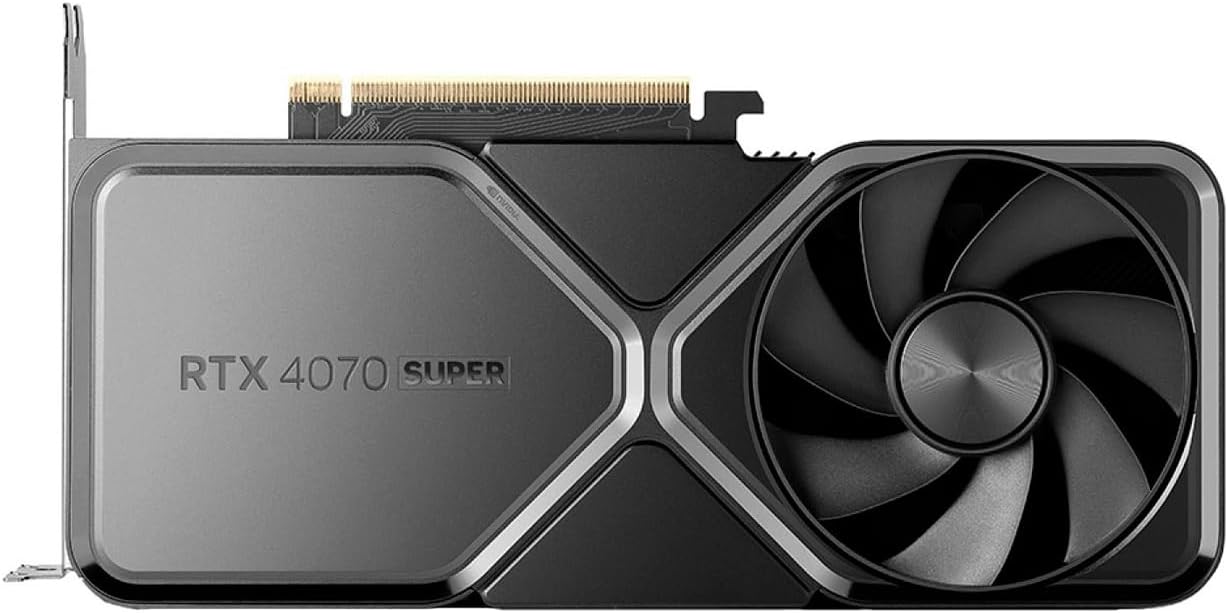
8. NVIDIA GeForce RTX 4070 Super — Best Mid-Range All-Rounder
Key Specs:
- CUDA Cores: 7,168
- VRAM: 12 GB GDDR6X
- Memory Bandwidth: 504 GB/s
- TDP: 220W
- Architecture: Ada Lovelace (AD104)
Key Features:
- Solid Blender Cycles performance at mid-range pricing.
- Full OptiX and RT core support.
- Efficient 220W TDP.
- Good for everyday Blender work and smaller commercial projects.
Pros:
- Great all-rounder for Blender and gaming combined.
- Efficient, cool, and quiet.
- Solid driver support and stability.
- Accessible price point.
Cons:
- 12 GB VRAM can be limiting on complex scenes.
- Not suitable for 8K texture work or large simulations.
Best For:
Blender users who also game, content creators splitting time between Blender and video editing, and students.
Honest Review:
The RTX 4070 Super is the “do everything reasonably well” card. It’s not the best GPU for Blender if rendering is your full focus, but if you’re balancing 3D work with gaming, video editing, or other GPU tasks, it’s an excellent compromise. The 12 GB VRAM is the only caveat; scenes can get tight quickly on heavy projects.
Comparison Table: Best GPUs for Blender
| GPU | VRAM | CUDA Cores | Blender Performance | Price Range | Best For |
|---|---|---|---|---|---|
| RTX 5090 | 32 GB GDDR7 | 21,760 | ⭐⭐⭐⭐⭐ | $2,000–$2,500 | Studios, heavy production |
| RTX 4090 | 24 GB GDDR6X | 16,384 | ⭐⭐⭐⭐⭐ | $1,600–$1,900 | Professionals |
| RTX 4080 Super | 16 GB GDDR6X | 10,240 | ⭐⭐⭐⭐ | $900–$1,100 | Serious freelancers |
| RTX 4070 Ti Super | 16 GB GDDR6X | 8,448 | ⭐⭐⭐⭐ | $750–$850 | Best value mid-range |
| RX 7900 XTX | 24 GB GDDR6 | 12,288 SP | ⭐⭐⭐½ | $850–$950 | AMD users |
| RTX 4060 Ti 16GB | 16 GB GDDR6 | 4,352 | ⭐⭐⭐ | $450–$500 | Students, hobbyists |
| RTX 4070 Super | 12 GB GDDR6X | 7,168 | ⭐⭐⭐ | $550–$650 | Mid-range all-rounder |
| RTX 3090 (used) | 24 GB GDDR6X | 10,496 | ⭐⭐⭐ | $500–$700 | Budget professionals |
Buying Guide: How to Choose the Best GPU for Blender
Step 1: Define Your Workflow
Before looking at specs, be honest about what you actually do in Blender:
- Hobbyist/learner — RTX 4060 Ti 16 GB or RTX 4070 Super
- Freelancer (medium projects) — RTX 4070 Ti Super or RTX 4080 Super
- Professional / studio — RTX 4090 or RTX 5090
Step 2: Prioritise VRAM Over Clock Speed
A GPU with more VRAM will handle Blender better than a faster GPU with less memory. Always check the VRAM requirements of your heaviest scene before buying. A good rule of thumb: your scene file size × 2 = minimum VRAM needed.
Step 3: Choose NVIDIA If You Primarily Use Cycles
NVIDIA’s OptiX backend consistently delivers faster Cycles render times than AMD’s HIP implementation on comparable hardware. If your primary concern is Cycles rendering speed, NVIDIA is the safer choice in 2026.
Step 4: Don’t Ignore Your Power Supply
The RTX 5090 draws 575W. The RTX 4090 draws 450W. If your PSU is a 650W unit, you’ll need an upgrade before installing a high-end GPU. Budget at least 150W headroom above your GPU’s TDP.
Step 5: Consider VRAM Scalability
If you plan to grow — larger scenes, more detailed textures, animation at higher resolutions — buy more VRAM than you currently need. Running out of VRAM mid-project is far more frustrating than overspending upfront.
Step 6: Watch the Used Market
The RTX 3090 and RTX 4090 second-hand market offers exceptional value. A used RTX 4090 or 3090 in good condition from a verified seller can give you professional-level Blender performance at a meaningful discount.
Common Mistakes to Avoid When Buying a GPU for Blender
- Buying an 8 GB GPU — Even budget workflows are starting to demand 12 GB minimum. 8 GB VRAM cards will frustrate you within a year.
- Focusing only on gaming benchmarks — A GPU that excels in gaming doesn’t necessarily excel in Blender. Always look for Blender-specific benchmark data (Blender OpenData is free and public).
- Ignoring AMD entirely — AMD’s RDNA 3 cards have improved dramatically for Blender. The RX 7900 XTX is a genuine alternative, especially for users in AMD ecosystems.
- Overlooking power draw — Buying a 575W GPU without checking your PSU capacity is a common and expensive mistake.
- Skipping GPU denoising — NVIDIA’s AI denoiser (OptiX Denoiser) can cut effective render times dramatically. Make sure your card supports it (all RTX cards do).
- Assuming newer always means better value — The RTX 5090 is faster, but whether it’s better value for your use case depends entirely on your workload. Don’t overspend for performance headroom you’ll never use.
Conclusion: Find the Best GPU for Blender That Fits Your Needs
Choosing the best GPU for Blender ultimately comes down to three things: your budget, your VRAM requirements, and the complexity of your rendering workload.
As a general rule, always prioritise VRAM over raw clock speed; running out of memory mid-render is the most common and most avoidable bottleneck. Aim for at least 16 GB for serious work, and 24 GB or more if you regularly work with high-resolution textures, dense geometry, or complex simulations.
For render engine speed, NVIDIA’s OptiX backend currently delivers the fastest Cycles performance, while AMD remains a solid alternative for those already invested in that ecosystem.
Match your GPU to your actual workload, not your dream workload. Overspending on performance headroom you’ll never use is money better saved for other parts of your creative setup.
Invest wisely, render faster, and spend more time creating.
People May Also Ask
Q1: What is the best GPU for Blender rendering in 2026?
The NVIDIA GeForce RTX 4090 is the best GPU for Blender for most professional users in 2026, offering 24 GB GDDR6X VRAM, 16,384 CUDA cores, and mature OptiX driver support. If budget is no concern, the RTX 5090 is approximately 36–40% faster. For value-focused buyers, the RTX 4070 Ti Super offers the best performance per dollar.
Q2: How much VRAM do I need for Blender?
You need at least 12 GB of VRAM for general Blender work in 2026. For complex scenes with high-resolution textures, simulations, or large environments, 16–24 GB is recommended. Anything below 8 GB will likely force Blender to fall back to CPU rendering on professional-level projects.
Q3: Can I use an AMD GPU for Blender?
Yes. AMD GPUs work with Blender via the HIP render backend. The RX 7900 XTX is AMD’s strongest option, with 24 GB VRAM and competitive Blender HIP performance. However, NVIDIA’s OptiX backend still delivers faster Cycles render times on equivalent hardware, making NVIDIA the preferred choice if raw render speed is the priority.
Q4: Can I use multiple GPUs for Blender rendering?
Yes, Blender supports multi-GPU rendering via CUDA and OptiX on NVIDIA cards. You can run two or more GPUs simultaneously for Cycles renders, and the performance scales well. However, VRAM does not pool between cards; each GPU’s VRAM limit applies independently. Multi-GPU setups are most useful for animation rendering pipelines or render farms.
Last Updated on 4 September 2026 by Ansa Imran

Ansa Imran, a writer, excels in creating insightful content about technology and gaming. Her articles, known for their clarity and depth, help demystify complex tech topics for a broad audience. Ansa’s work showcases her passion for the latest tech trends and her ability to engage readers with informative, well-researched pieces.